Automatic Application Updates via the Microsoft Application Store
Applies to Sub-Control 3.5
In the Windows search bar with the magnifying glass icon, type Microsoft Store.

Searching for the Microsoft Store
The Microsoft Store is shown below. Select the three dots (…) in the top right under the X.

Microsoft Store Home Screen
Select Settings.

Available Settings in Microsoft Store
Ensure that Update apps automatically is set to On.
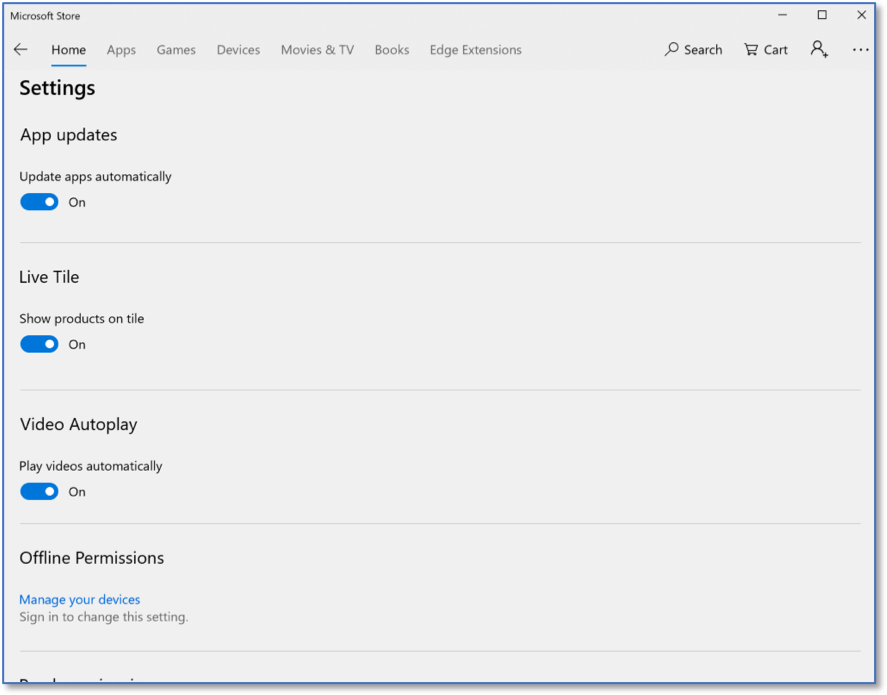
Detailed Settings in Microsoft Application Store
More steps are required to partially fulfill this Sub-Control. In the Windows search bar with the magnifying glass icon, type windows update. This is shown below.

Searching For Windows Update Settings
Select Windows Update settings. This will bring you to the Windows update panel. This screen shows the status of updates on this computer. Select Advanced options.

Windows Update Home Screen
Selecting Advanced options will provide additional system update settings shown here.

Windows Update Advanced Options
Selecting Give me updates for other Microsoft products when I update Windows will automatically download updates for applications like Microsoft Word or Microsoft Excel.

Advanced Windows Update Options