Enforcing Password Length via LGPE
Applies to Sub-Control 4.2
Note
The Local Group Policy Editor can be used to enforce a minimum password length. The CIS Windows 10 Benchmark recommends a 14-character password.
In the Windows search bar with the magnifying glass icon, type local group to open the Local Group Policy Editor. This is shown below.
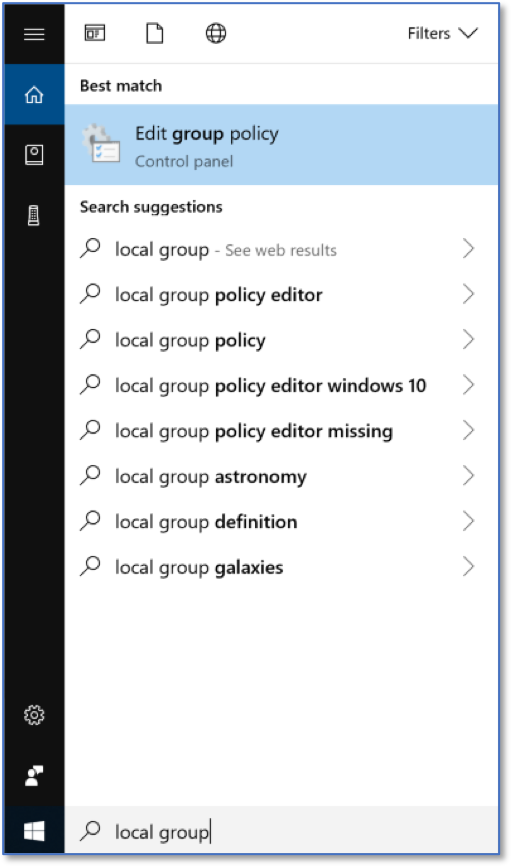
Searching for LGPE
The Local Group Policy Editor is shown below.

Local Group Policy Editor Home Screen
Under Computer Configuration, expand Windows Settings and select Security Settings.
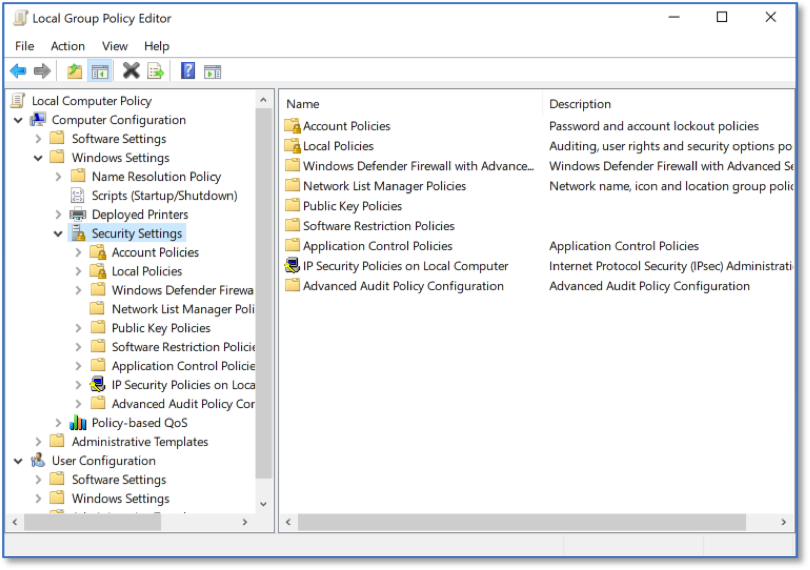
LGPE Security Settings
Select Account Policies, then Password Policy and then Minimum password length.
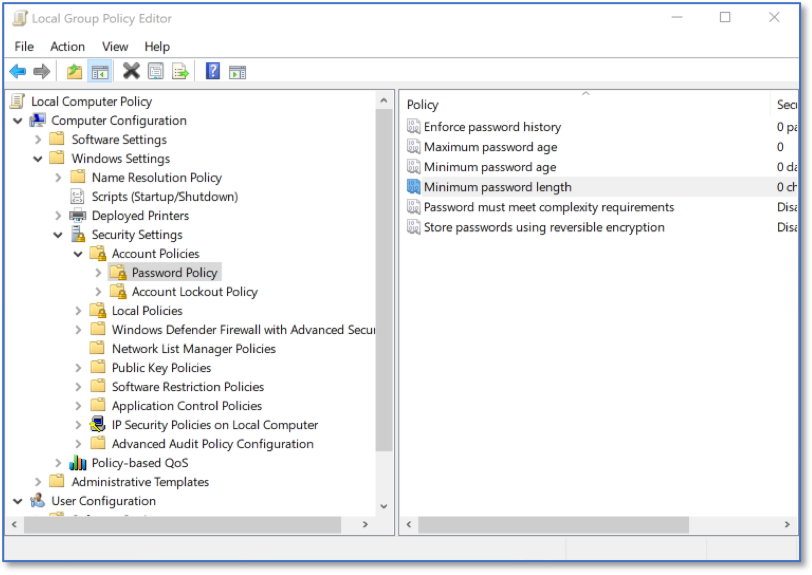
LGPE Minimum Password Length
Input 14 as the minimum password length and select Apply.
Note
This will not automatically make a user change their password to meet policy. Users will need to manually update their password, but Windows will ensure that future passwords are at least 14 characters long.

Selecting Minimum Password Length